

Interfaces
The Interface is the heart of Syntien. This section will walk you through all of the basics of managing your interfaces – editing, saving, opening, sharing, and more.
Edit Mode
Before we do anything, find the button in the top right corner of the screen. You can use this button to change between Edit mode (where you can edit your interfaces, open interfaces, and manage other settings), and Performance mode (where you can actually use the interface).
Before we dig into Syntien's capabilities, you should find the button to the
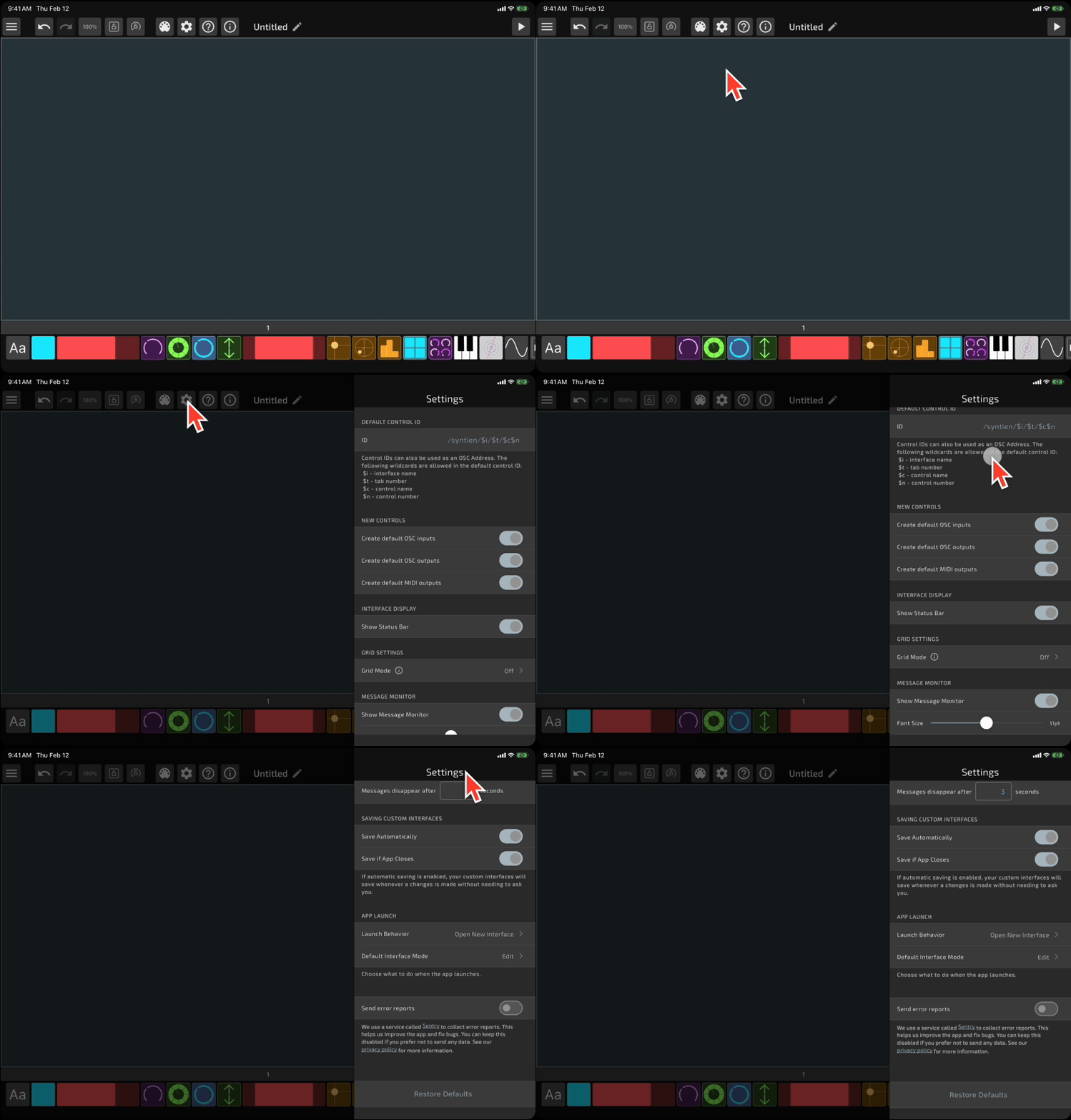
Now, we're ready to dive in.
Creating a Custom Interface
In Edit mode, open the menu in the top left and press
Working with Controls
Adding Controls
To add a control to your interface, tap the one you want at the bottom of the screen. Syntien will automatically place it at a reasonable spot on the screen. There is no hard limit on the number of controls you can add to a single interface.
Moving and Resizing Controls
To move a control, simply tap the control in the center and drag it where you want.
To resize a control, tap one of the edges or corners, then drag to resize.
Duplicating Controls
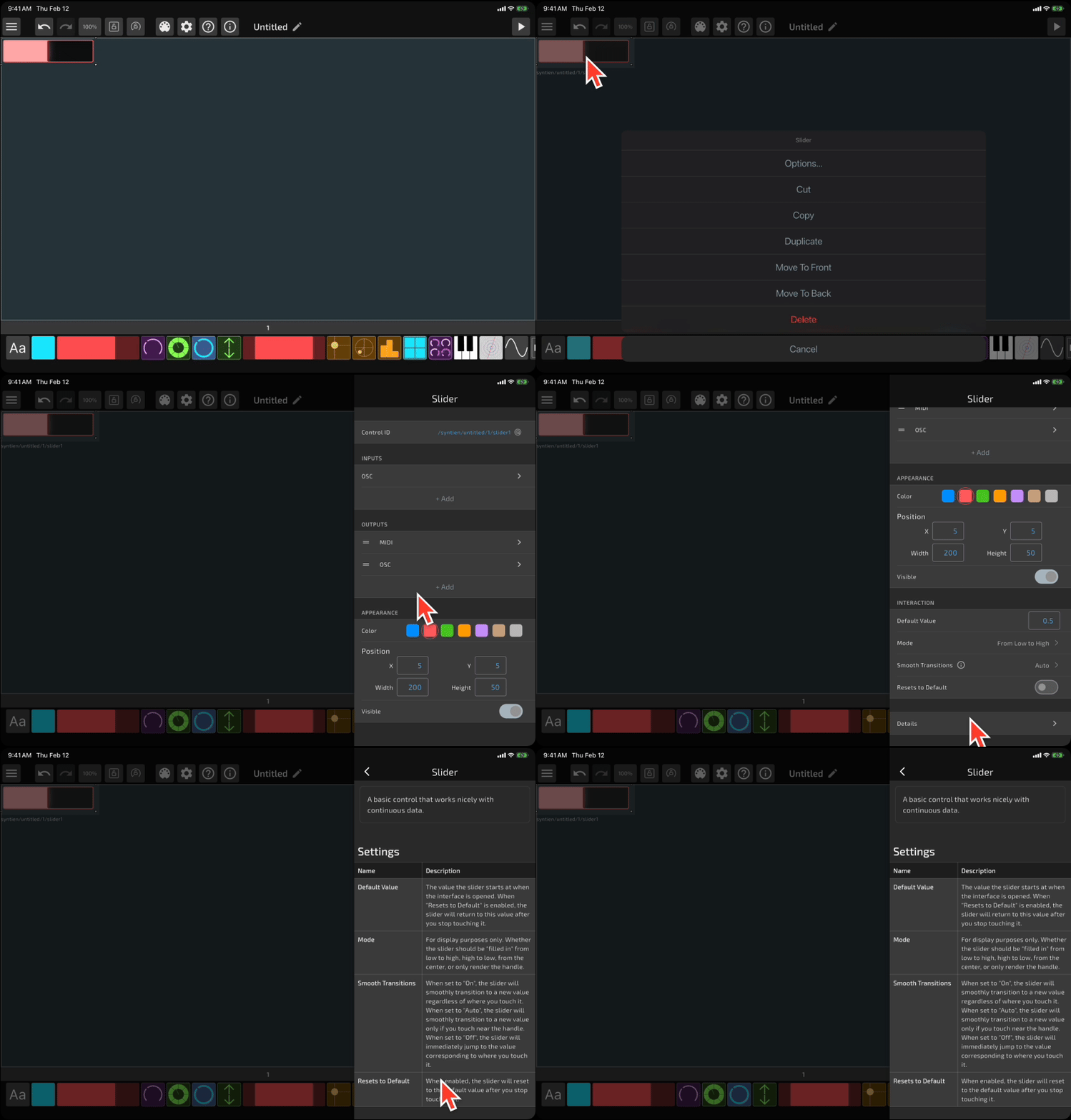
To duplicate a control, long-press the control, then press "Duplicate." This will duplicate the control and all its settings, but will assign a new Control ID.
You can use the
Control Configuration
You can configure a control in one of two ways:
- Double-tap the control to open the configuration screen
- Long-press the control, and then click "Options"
Control IDs
All controls will have a Control ID. This identifier is a valid OSC address that can be used as an address for sending or receiving OSC messages. It doesn't have to be unique, but in almost all cases, you'll probably want it to be unique. If you're not working with OSC (ex: you're only using MIDI), then you probably don't need to worry about it.
You can also set the position and visibility for any control. Most controls allow you to change their color, as well.
Help Page
At the bottom of the screen, click on Details to view a basic help page for the control.
Undo / Redo
If you make a mistake while editing, you can use the
Layout
Canvas
In Edit mode, the controls live on the interface canvas, the blue box that surrounds all of the controls. Everything on the canvas will be visible in Performance mode. Everything outside the bounds of the canvas will not be visible during a performance.
Zooming and Resizing
To zoom in or out, you can use pinch gestures. On a tablet, you can also drag up or down on the Zoom icon on top of the screen.
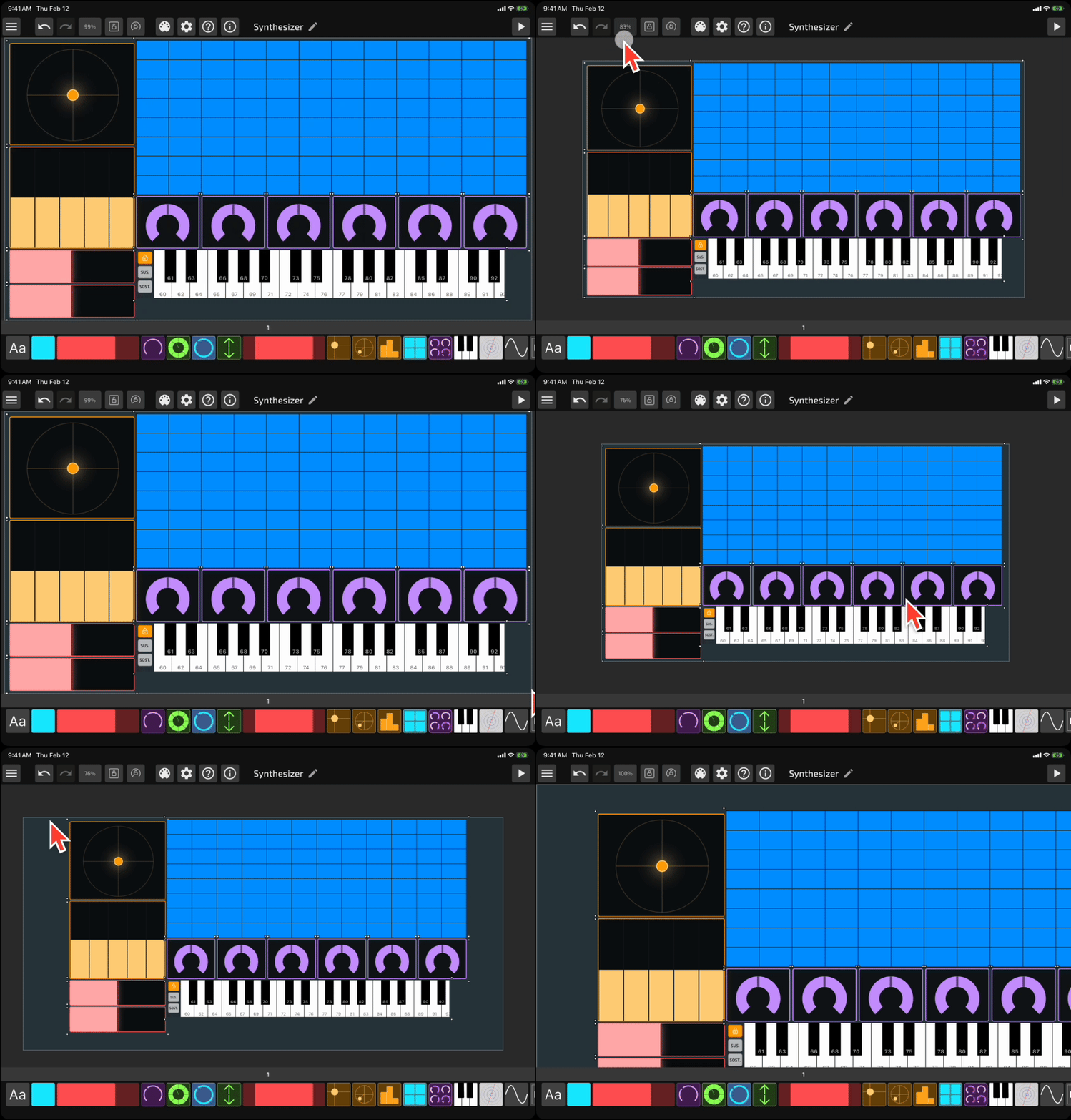
To resize the canvas, press and hold one of the four sides or corners of the canvas, and drag it as needed.
On a tablet, you can reset the zoom to 100% and position the canvas at the top left by tapping the zoom icon. You can zoom-to-fit by long pressing the zoom icon. Neither of those actions change the height or width of the canvas; they simply adjust the zoom and scroll offset of the canvas.
To resize the canvas to fit your device's screen, tap
You can also specify if you want to force your device to use Portrait or Landscape mode for this interface. If you select "Any", the interface will rotate as you rotate your device (unless you have screen lock enabled on your device).
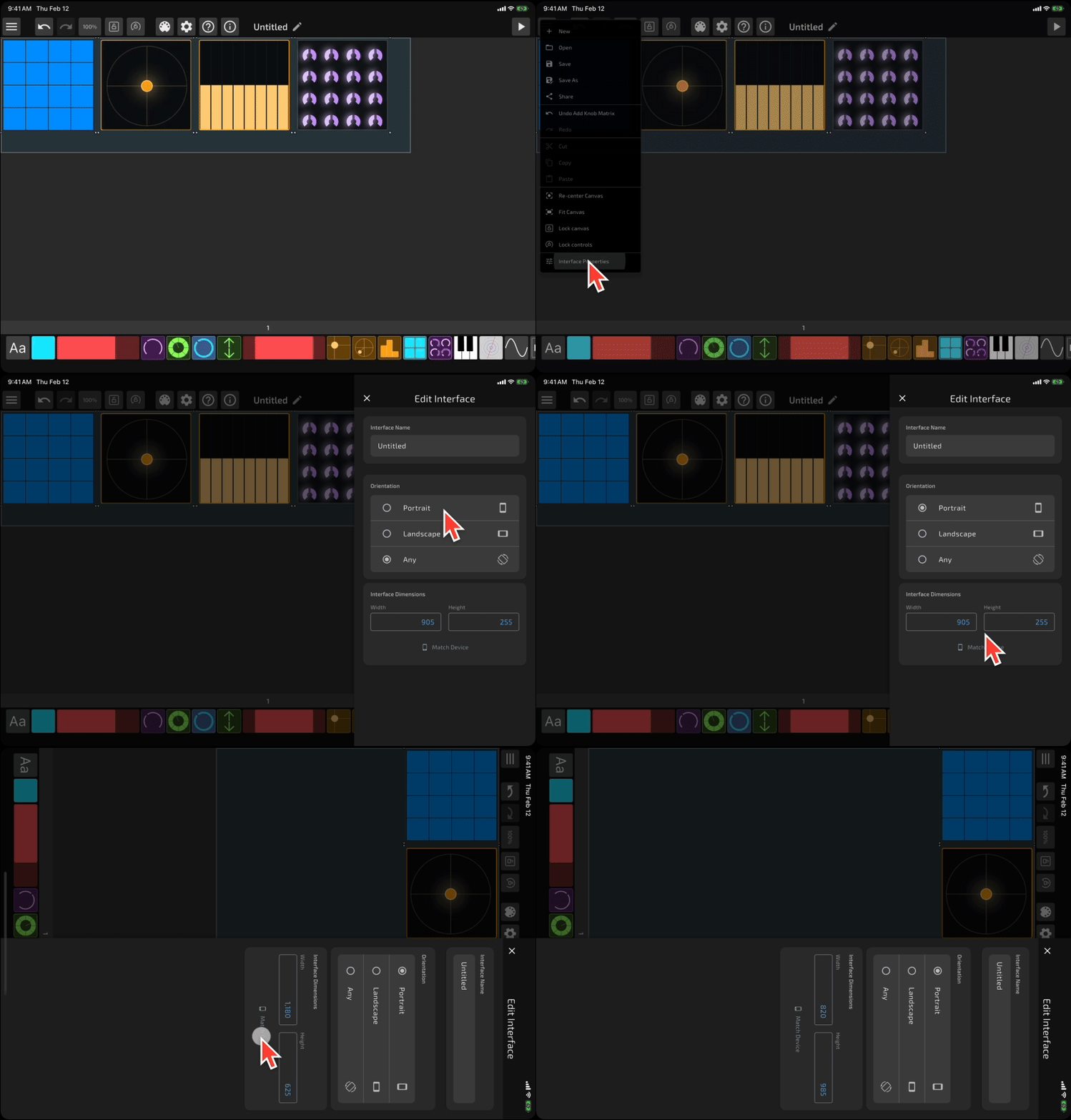
If you're happy with the canvas's position, you might want to use the


Grid Mode
Syntien 2 allows you to edit controls on a grid, which can be used to ensure that your controls are lined up nicely. To enable this, open the
- Off - Select this if you don't want to use a grid
- Show - Select this if you want the grid to be visible, but only want to use it as reference. Controls will not be locked to the grid when editing.
- Snap - Select this if you want to snap controls to the grid, but only if they're positioned close to a grid line.
- Lock - Select this if you always want to lock controls to the grid.
Tabs
Syntien 2 allows you to create up to 8 tabs on an interface.
To create a tab, long-press the tab at the bottom of the screen and press "Insert Tab Before" or "Insert Tab After".
In the same menu, you'll also see options to move the tab, remove the tab, or remove all controls from the tab. Those options will only appear when relevant. For example, if there are no controls on the tab, you won't see the option to remove all controls.
You can also rename a tab from this menu.
To move a control to a different tab, use the Copy / Paste feature described in the Working with controls section.
Saving an Interface
To save an interface, simply use the
If you want your interfaces to be saved automatically while you're editing, open the
Regardless of your auto-save preference, Syntien will ask you if you want to save changes or discard changes if you attempt to close an interface with unsaved changes.
Opening an Interface
You can open a saved interface by pressing the
Sharing an Interface
There are two ways to share an interface with another device. You can use your device's built-in share sheet, or transfer an interface to another device over local Wi-Fi.
Local Wi-Fi
To share an interface via local Wi-Fi, make sure both devices are on the same network. On the sending device, tap
You can also use this method to transfer interfaces to Wear OS devices.