

Quickstart
Get up and running with Syntien 2 in just a few minutes. This guide will walk you through creating your first interface and sending your first MIDI message.
Toggle Edit Mode
To toggle Edit mode on or off, press the button in the top right corner of the screen.
Create a New Interface
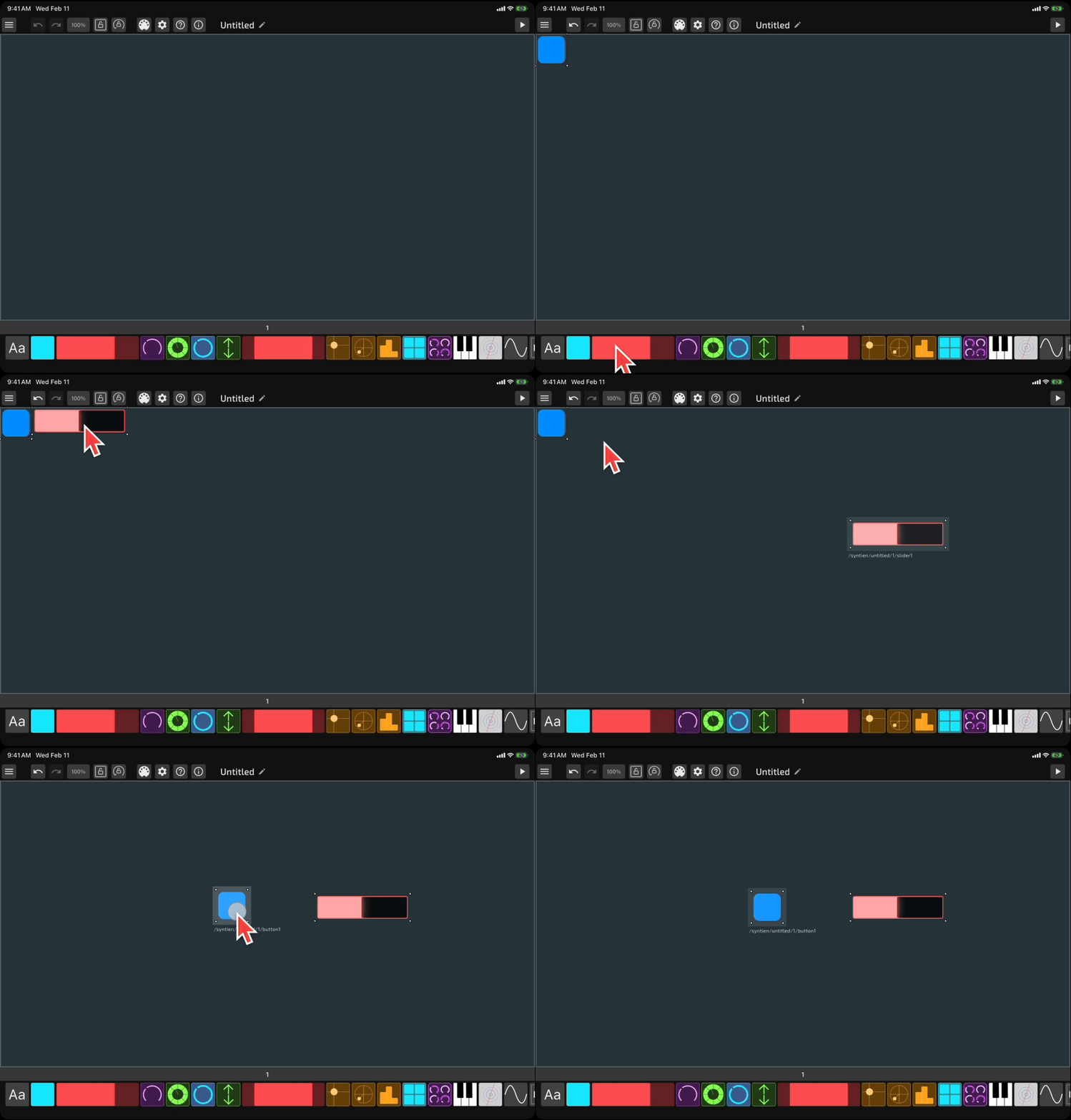
While in Edit mode, open the menu in the top left corner and press + New to open a new interface.

Add Controls
You can scroll through a list of controls at the bottom of the screen. Tap the


Configure the Button
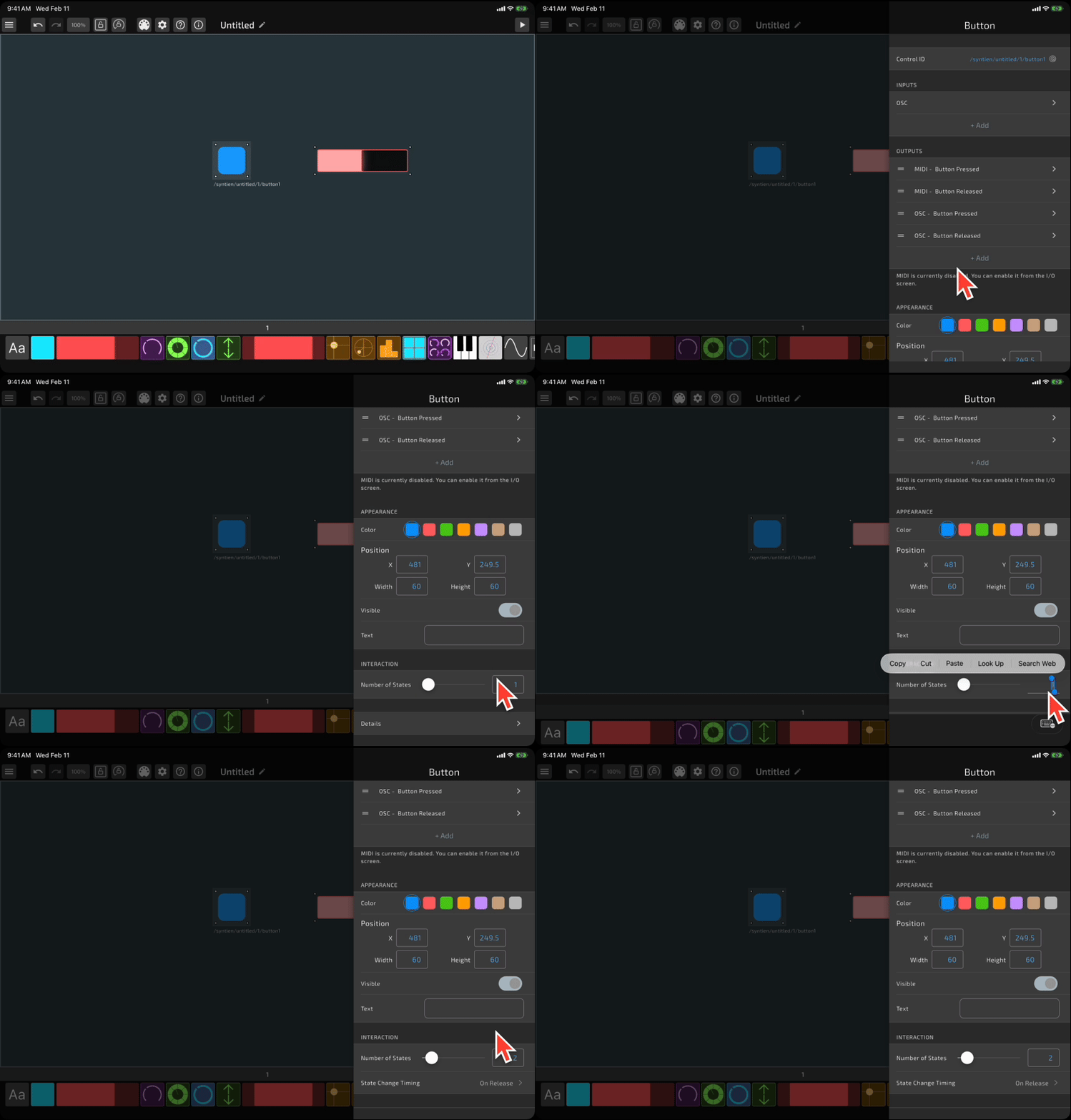
Now, double-tap the button you just added to change its behavior. Find the setting for Number of States and change the value to 2. When the button has 2 states, we can set it up to behave as an on/off toggle.
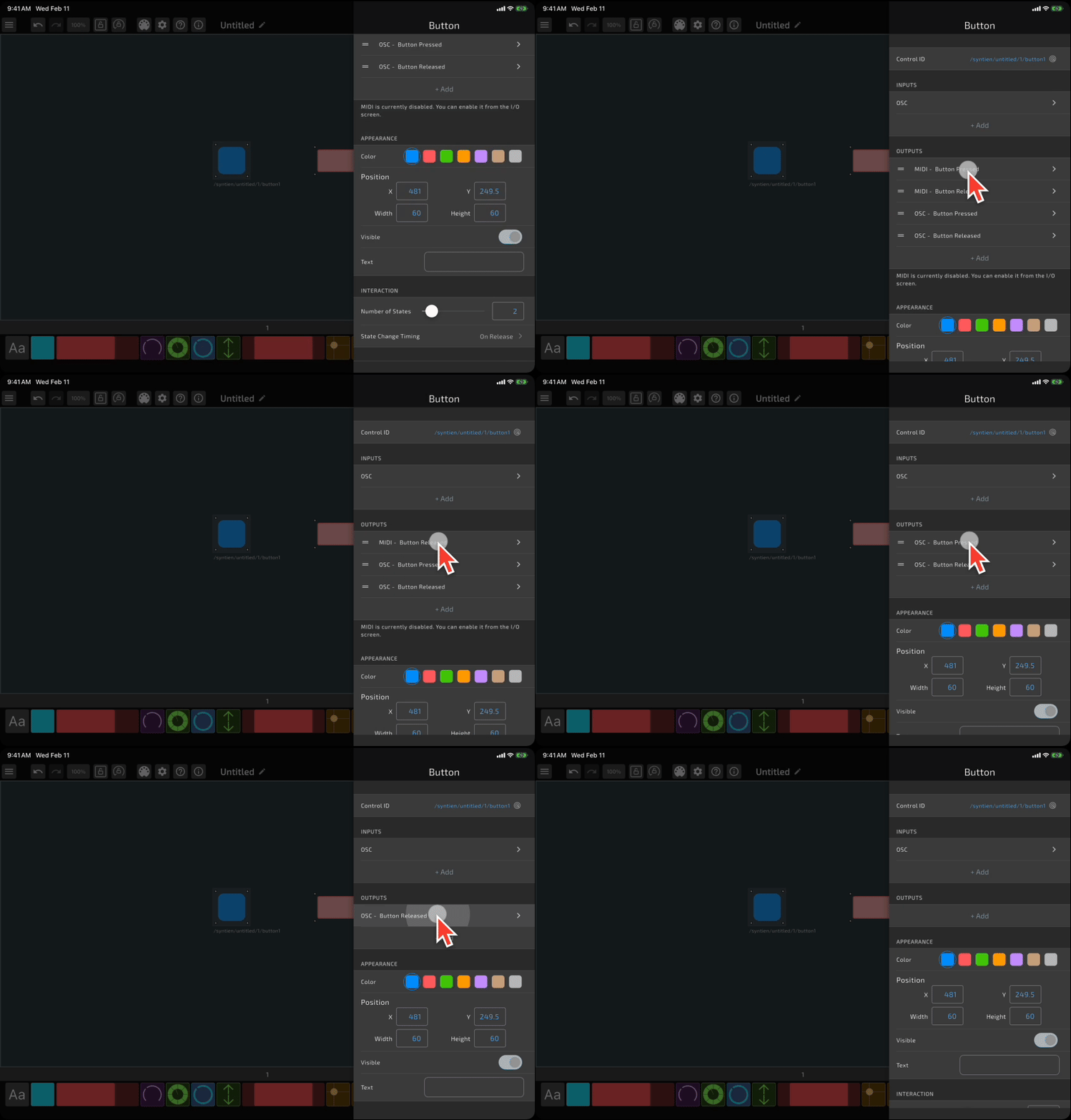
For this demo, we're only going to send a MIDI message when the button is toggled on or off. Syntien 2 will automatically add the default MIDI and OSC outputs for the "Button Pressed" and "Button Released" events (unless you have changed that behavior in Settings), so let's delete those. Long-press each of the outputs and press "Delete".
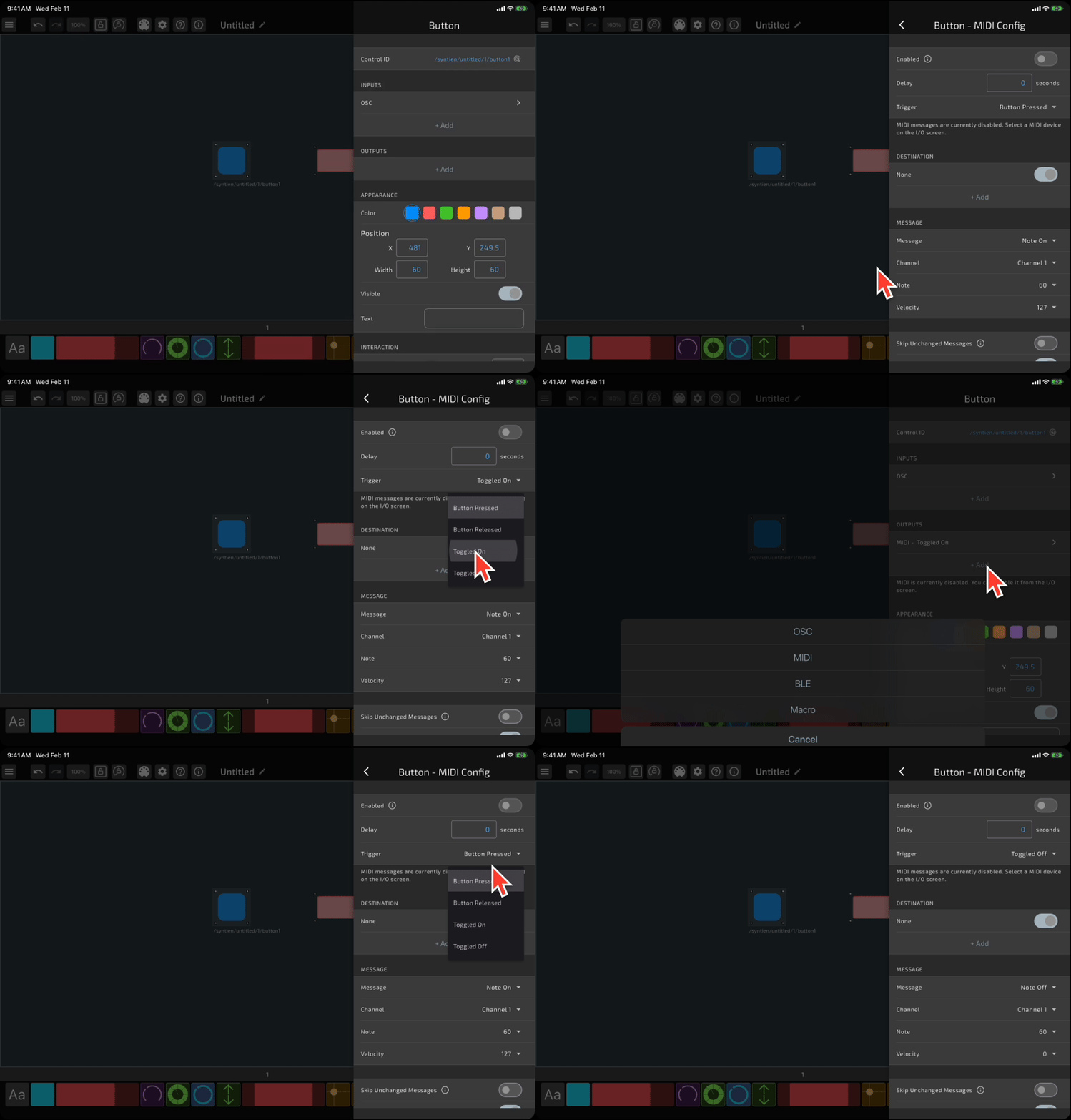
Now, tap the
Navigate to the previous screen, and let's repeat the process for the Toggled Off trigger. This time, we'll have the button send a Note Off message on Channel 1 with velocity 0.
Configure the Slider
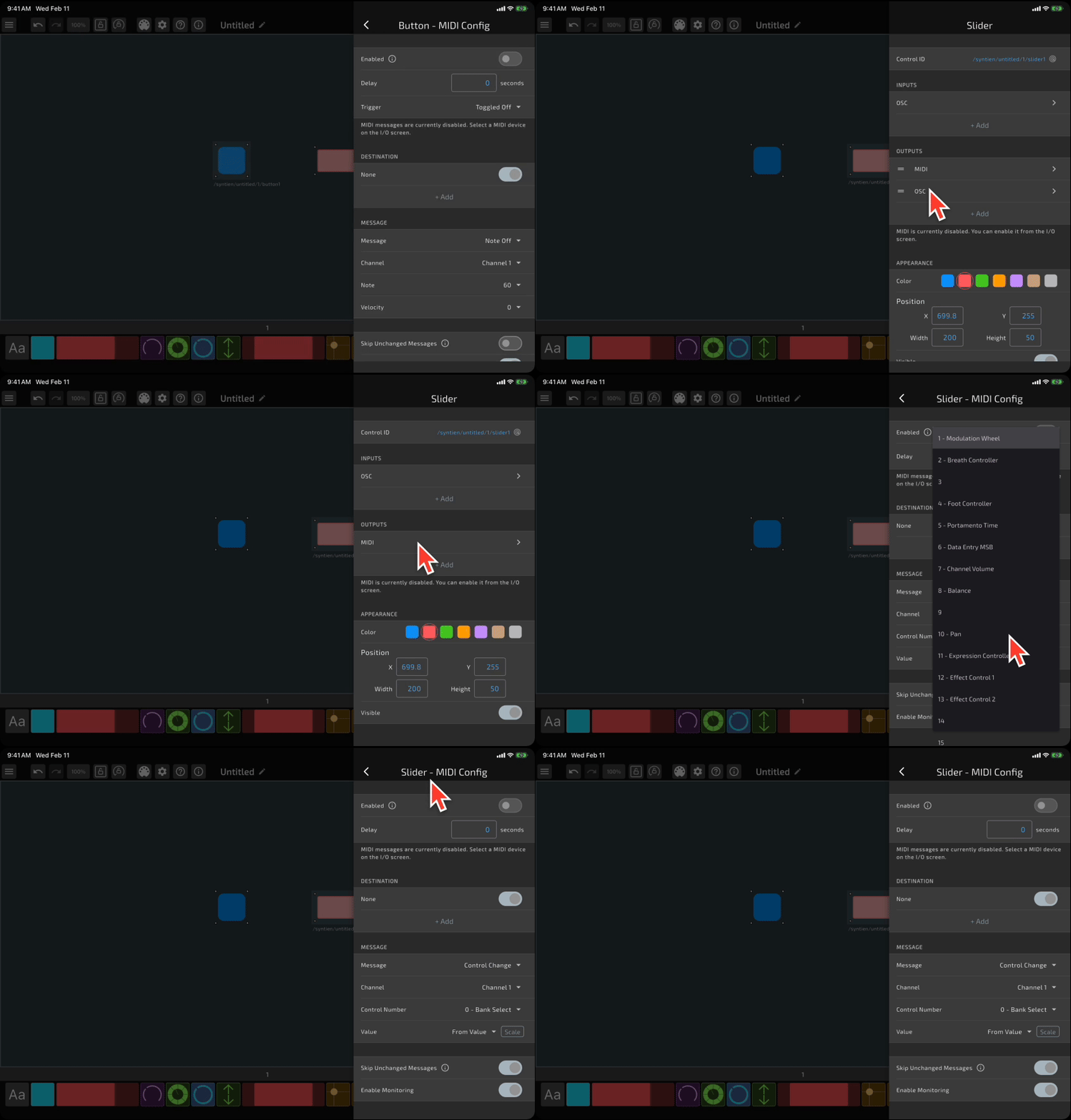
Press the Back button (or tap anywhere else on the screen) to navigate back to the interface. Now let's configure the slider. Double-tap the slider to open its configuration. You should see default MIDI and OSC outputs already created (unless you have changed that behavior in Settings). You can delete the OSC output if you want, since it doesn't matter for this demo, or you can leave it in place, since our receiver won't be configured to handle OSC messages anyway. Tap the MIDI output to adjust its configuration. Let's have it send a Continuous Control message on channel 1, and we'll use the first control number (0). We want the value to come from the slider itself, so make sure that "Value" is set to "From Value."
Save the Interface
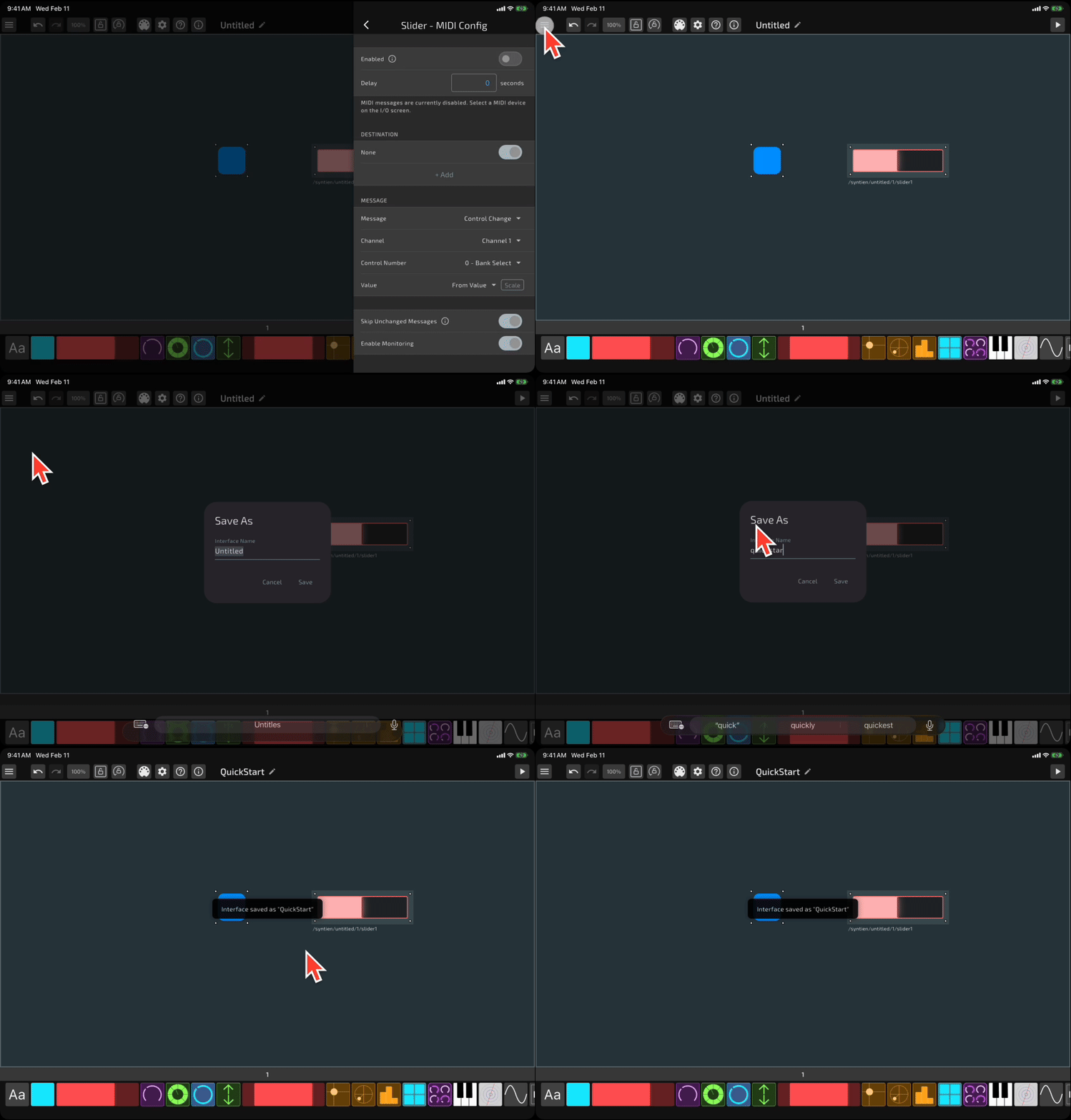
That's all the interface design we need to do for this demo. Tap the
Configure MIDI Destination in Syntien
In Syntien 2, navigate to the

Navigate to the MIDI settings screen. You may see a pop-up to give Syntien 2 permission to find Bluetooth devices – this is useful if you want to use MIDI over Bluetooth, so you should probably press "Allow". In the section that says "Default MIDI Destination", set the Device to your computer. Then, press the Back button or tap anywhere else on the screen to navigate back to your interface.
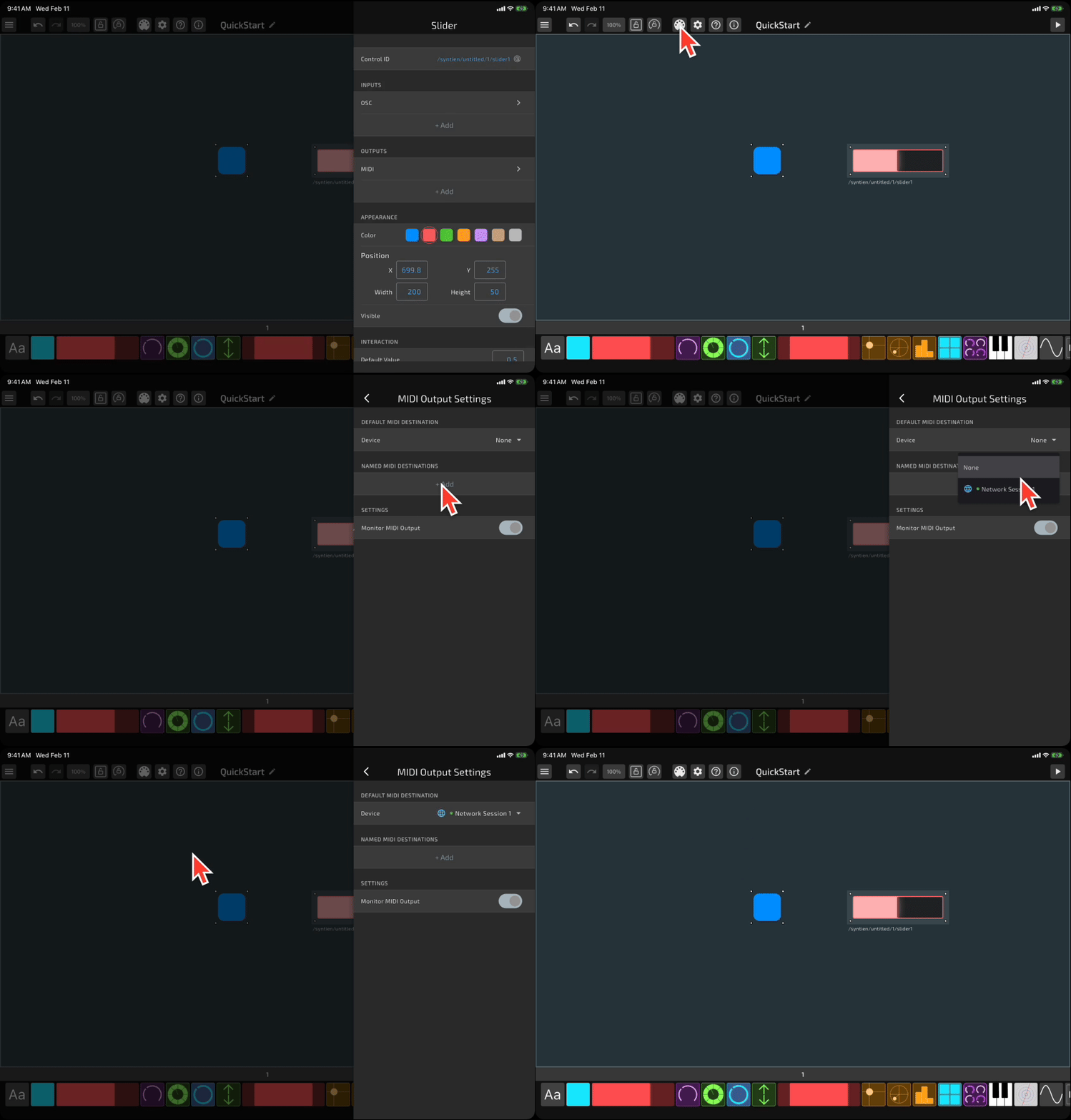
If you don't see your device in the list of available MIDI destinations, follow the steps in the next section to pair with your device via USB, Bluetooth, or the Network Session.
Set Up MIDI Connection
Now, let's set up the connection to your MIDI receiver. You can use Syntien to send MIDI to another device, or virtual MIDI to the same device if you have another app that supports it. Here are instructions for a few common configurations:
Sending MIDI via a USB cable
Plug your iOS device into your Mac via USB. If a dialog appears asking you to trust this device, be sure to accept.
On your Mac, open Audio MIDI Setup. On the Audio Devices screen, you should see your iOS device in the sidebar on the left. Click "Enable".
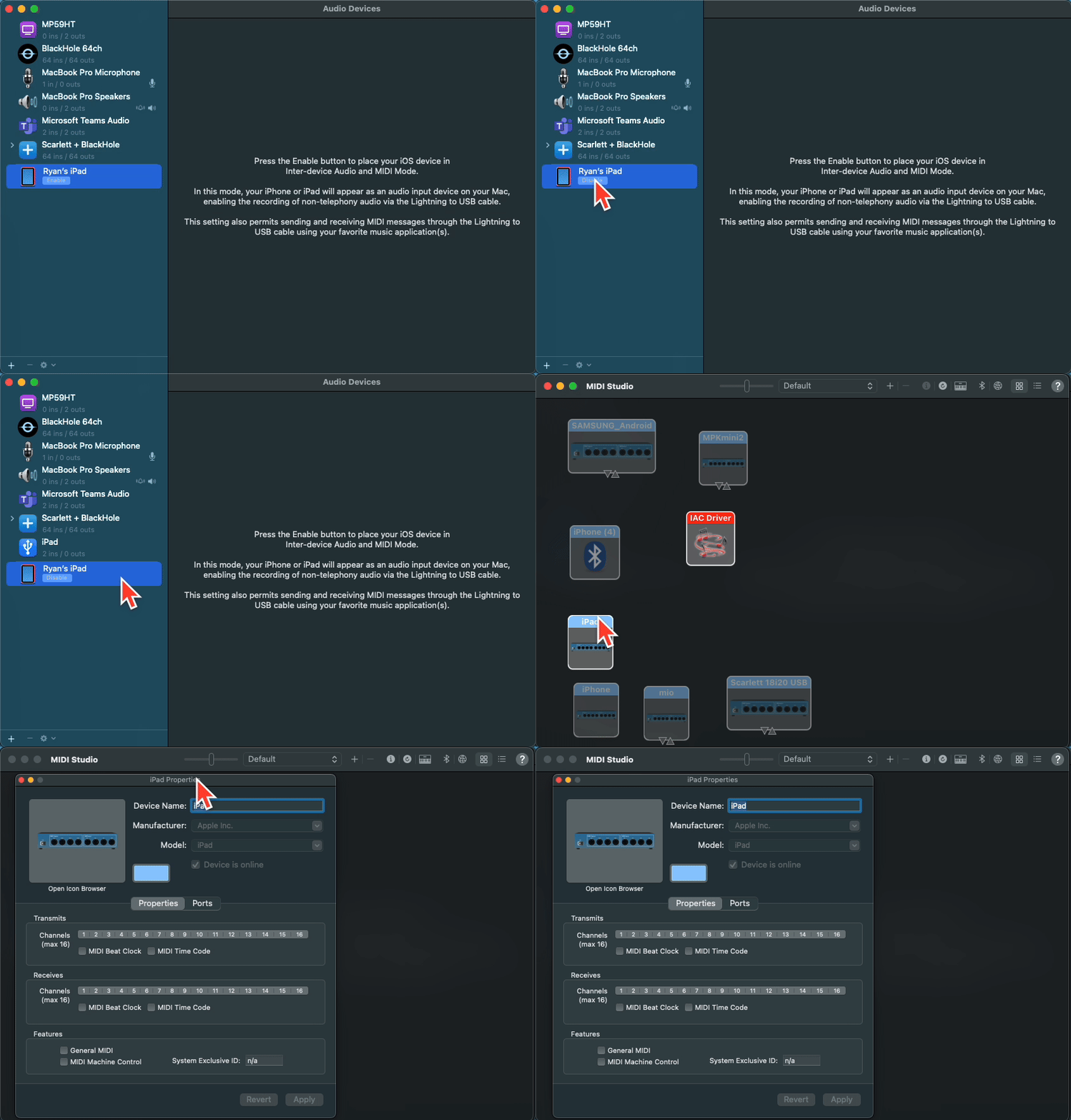
In Syntien, open the I/O screen and select MIDI. You should see your Mac as an available MIDI USB destination.
Sending MIDI via BLE
First, make sure Bluetooth is enabled on both your iOS device running Syntien, as well as your Mac.
On your Mac, open Audio MIDI Setup. Press Cmd + 2 to open the MIDI Studio window. Press the "Configure Bluetooth" icon in the top right. Then, click "Advertise".
In Syntien, open the I/O screen and select MIDI. You should see your Mac appear in the list of destinations as an available MIDI BLE destination.
If it says "Connection Failed" when you try to connect to your Mac via MIDI BLE, go to Settings > Bluetooth on your iOS device, tap your Mac under "My Devices", then select "Forget Device". In Syntien, re-open the MIDI Output Settings screen, and you should be able to connect to your Mac.
Sending MIDI via the Network Session
On your Mac, open Audio MIDI Setup. Press Cmd + 2 to open the MIDI Studio window. Press the network button in the top right to open the MIDI Network Setup window.
Then, press the + button to create a new session if one doesn't exist already. Check the box next to its name to enable the network session. Tap your iOS device in the "Sessions and Directories" panel and press Connect.
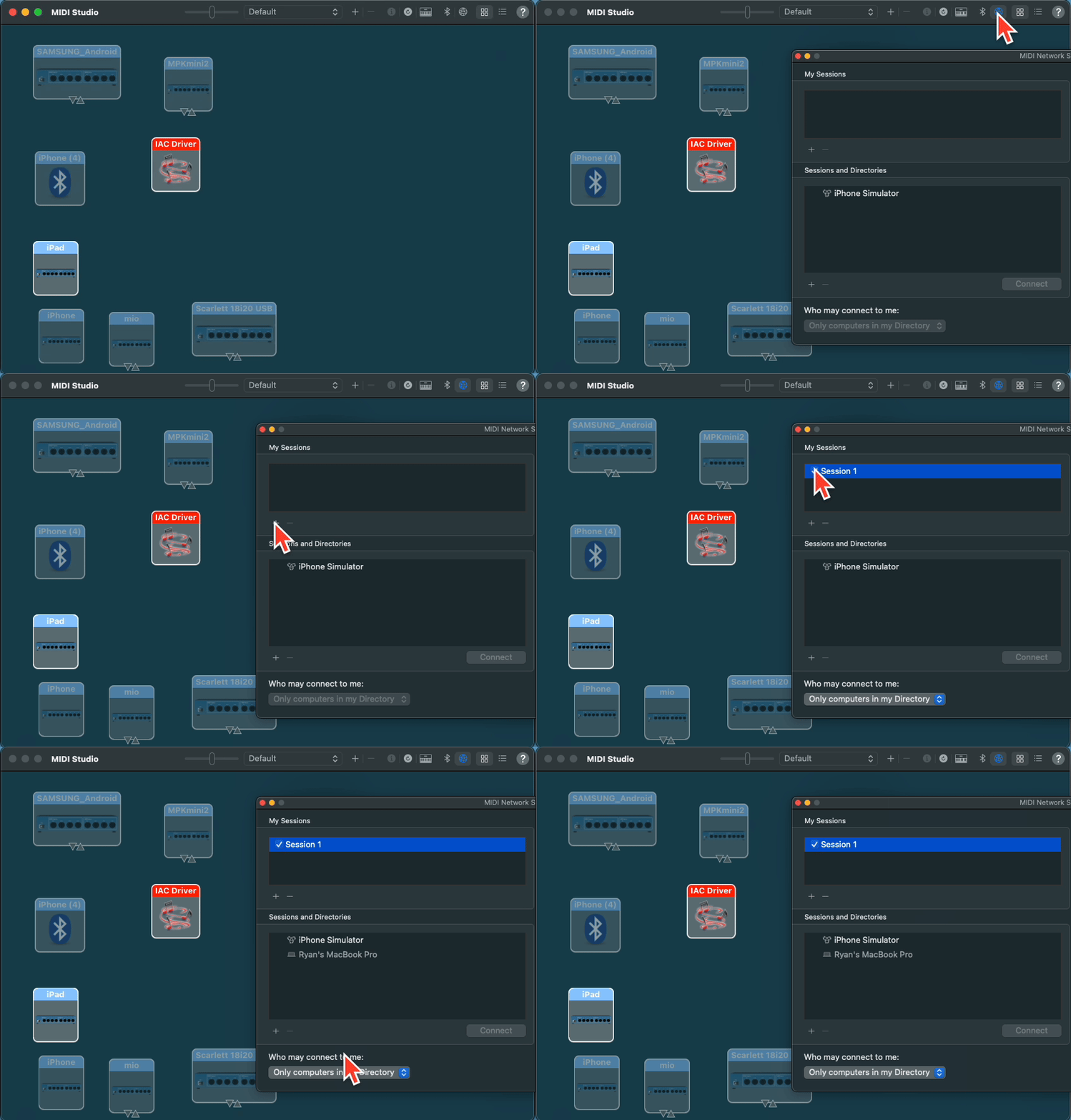
In Syntien, open the I/O screen and select MIDI. You should see the network session you just created appear in the list of destinations as an available Network Session destination.
Test It Out!
There are tons of apps you can use to receive MIDI messages, but for this demo, we'll use SuperCollider, which is free and great for testing out MIDI and OSC setups. You can download it here: https://supercollider.github.io/.
Open the tutorial file linked below in SuperCollider. Evaluate the file by clicking anywhere within the parentheses and pressing Cmd + Return (Mac) or Ctrl + Return (Windows). You'll see in the logs that we're initializing MIDI and defining several functions to handle MIDI inputs. We've also created a basic SynthDef, which defines the actual sound that we're creating – in this case, a basic sawtooth wave.
Pressing the button in Syntien 2 will start and stop the sawtooth wave by sending Note On and Note Off messages to SuperCollider. Moving the slider up and down will change the width of the sawtooth wave. You should also see the incoming MIDI data in the logs within SuperCollider.
We'll get into some more sophisticated setups in later tutorials.