Macros
Overview
In Syntien, you can use macros to communicate between two controls.
You can use macros to set a control's value, update its configuration (such as its position in the interface or change its color), or trigger an event (for example, to send a message from the target control).
When you set up a macro, you'll select the target control, the action (each control in Syntien has a different set of allowed actions), and the value. For some controls, you'll also be able to select the event trigger. For example, for an XY Pad, you're able to set whether a change in X value or Y value will trigger the macro.
Almost all controls in Syntien 2 can send macros, and all controls are valid as a macro target. More complex controls, such as the

Creating a Macro
To create a macro, you first need to add some controls to your interface. Let's add a

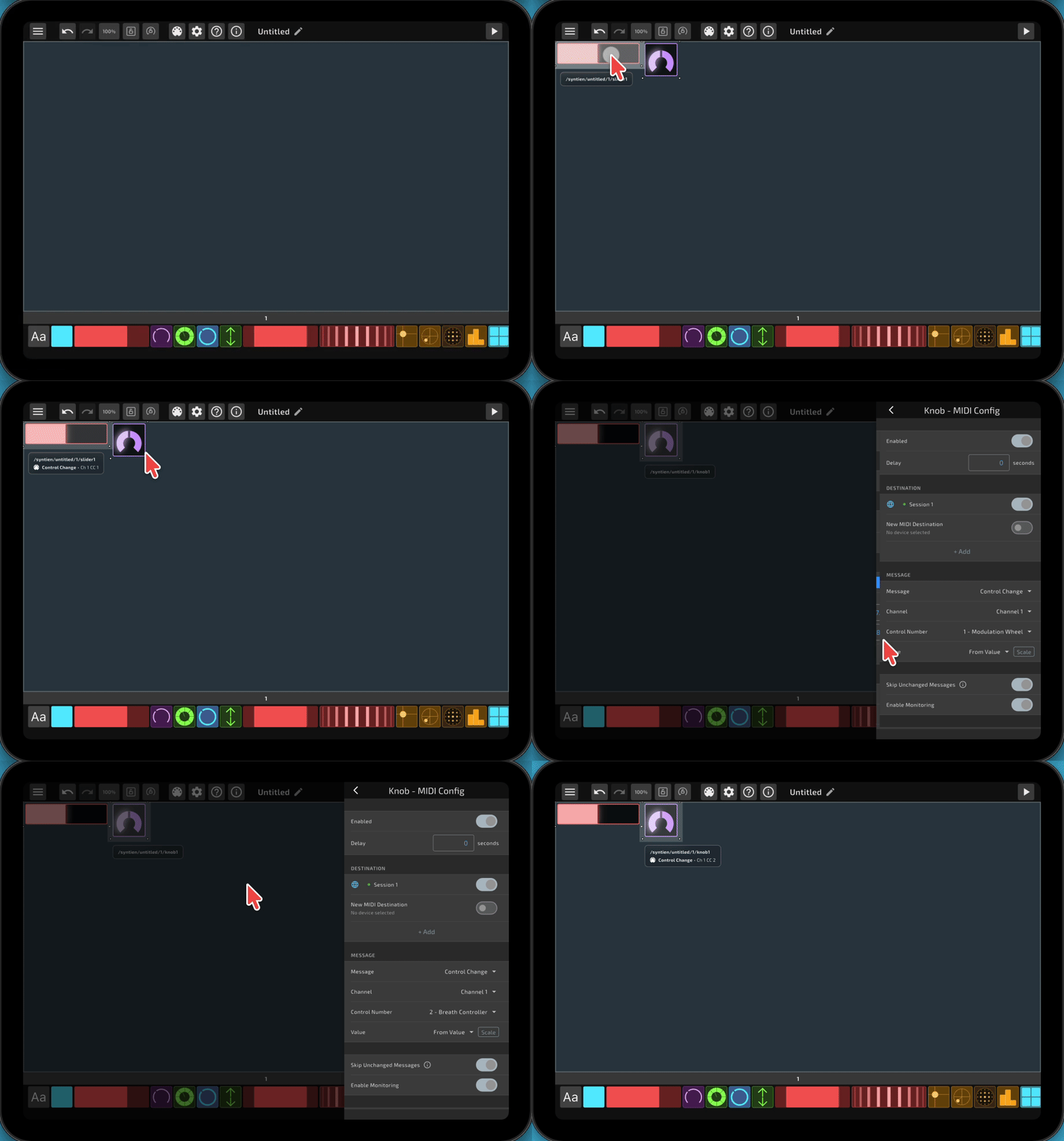
Next, let's add an
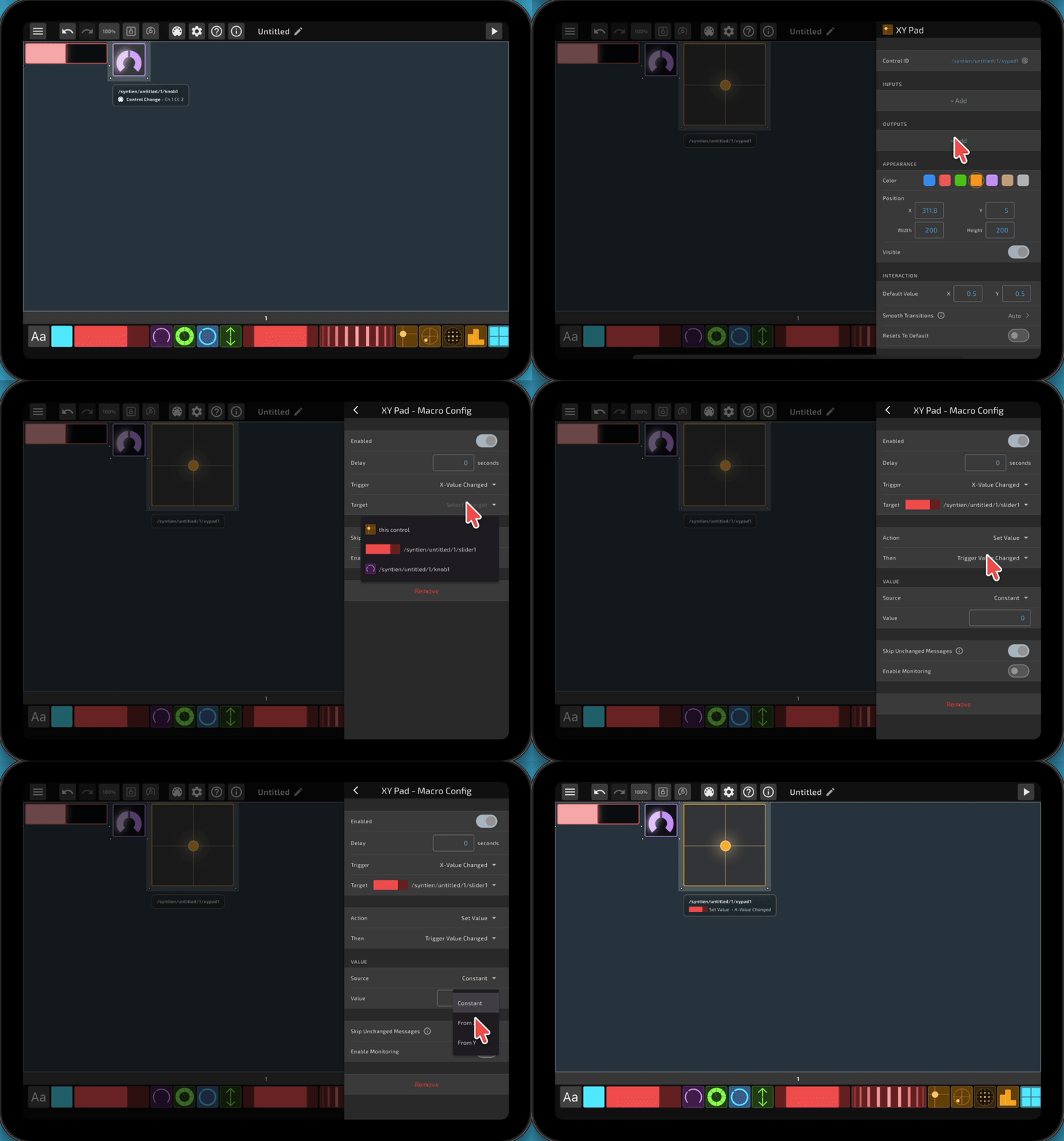
A single control can fire any number of macros. Now, we'll use the Y value of the XY Pad to set the Knob's value and trigger its MIDI output. To do this, we'll add a second Macro output to the XY Pad and set the target to the Knob. This time, we'll tell it to use the Y value of the XY Pad (Source = From Y) to set the Knob's value (Action = Set Value), and this will be triggered whenever the Y value of the XY Pad changes (Trigger = Y-Value Changed). If we want to scale this macro separately from the first macro, we can use the Edit Scaling button to set a different scaling for the Y value.
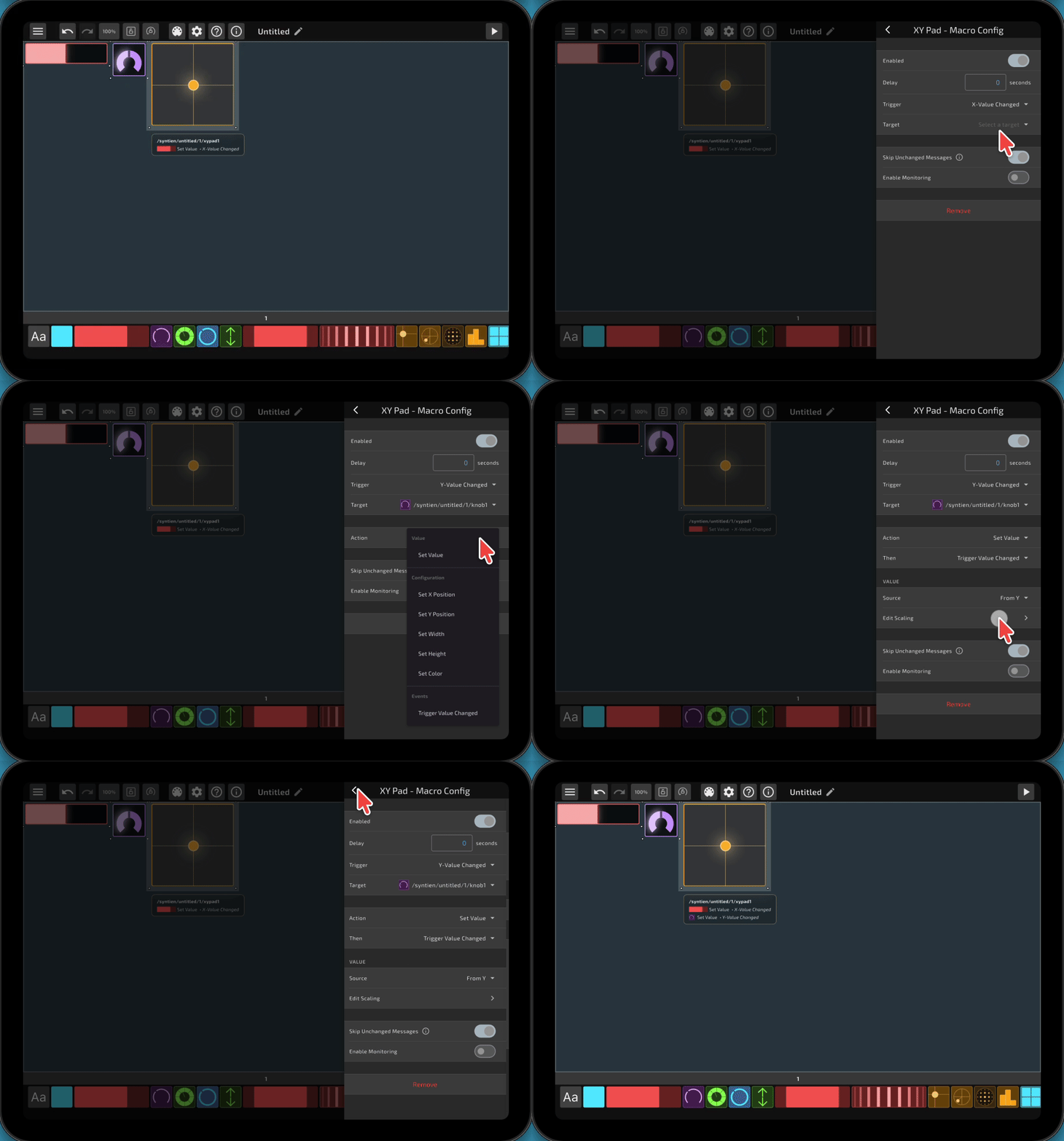
Now if you interact with the XY Pad, you'll see that the Slider and Knob are both being updated by the macros, and their MIDI outputs are being triggered.